You're familiar with the situation. You found the perfect spot: the ideal viewpoint, the beautiful angle. But every time you take a picture, someone is there in front of the camera. And no matter how many more pictures you take, there's always someone in the picture.
With Inpaint it doesn't matter.
Inpaint allows you to remove people, text or objects from any photo. And you'll probably be able to do so in a minute or two at the most - with no technical expertise or complicated software.
Step 1: Load the photo into Inpaint
Load the image which you want to clean, and add other photos with the same scene.
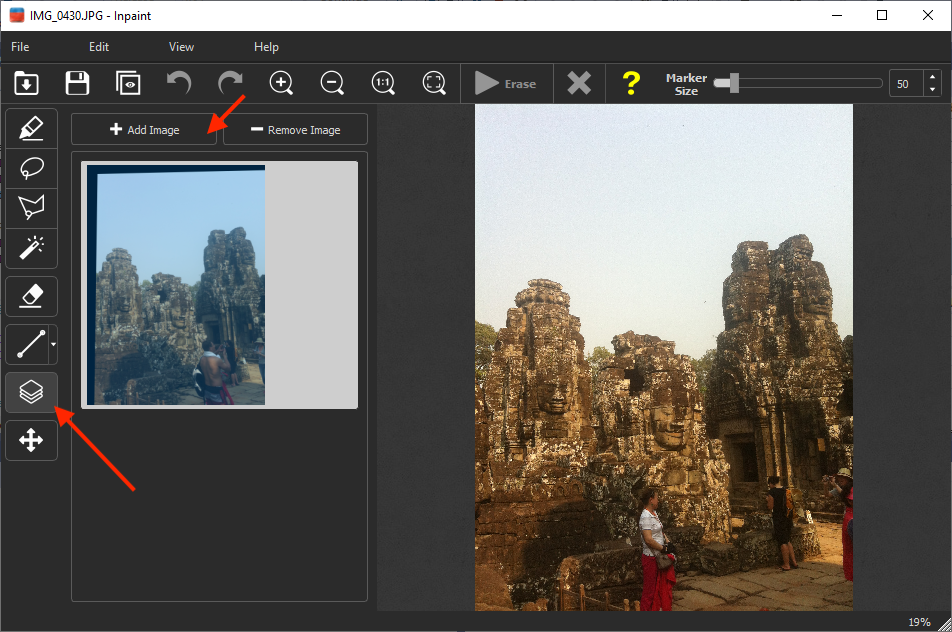
Step 2: Using Multi View Inpaint
Using the first image, restore what you were hoping to photograph.
Step 3: Continue cleaning using another image
Add and select another image from the left side, and remove the part of image that is still visible.
Step 4: Continue with Inpaint
Some aspects of the image have still not been cleaned, and cannot be restored using other images. Simply use the marker and paint over this part, allowing Inpaint to intelligently restore it using surrounding data.
Watch the software in action: how to remove unwanted tourists from your photos.