See how easy it is to remove unwanted elements
Inpaint keeps the workflow simple: open a photo, select the problem area, and let the app rebuild the background.

1
Load the image

2
Select the problem area

3
Erase and save
Photo retouch and restoration tips
Get better results with a simple workflow
- Inpaint reconstructs the selected area using surrounding pixels. The Donor Area lets you control which pixels are used. Read the tutorial.
- The Guide Lines tool helps when the object you want to remove crosses different background patterns. Read the tutorial.
- For complex photos, remove objects one at a time instead of trying to erase everything in a single pass.
- Each restoration pass can produce a slightly different result, so try another pass if the first one is not quite right.
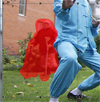
![How to Remove Unwanted People From a Photo [+Video]](/images/tutorials/pc/how-to-remove-unwanted-people-from-photo-thumb.png)





![How to Remove an Unwanted Object From an Image [Video]](/images/tutorials/pc/how-to-remove-unwanted-object-from-image-thumb.png)
![How to Use Multi View Inpaint [+Video]](/images/tutorials/pc/how-to-use-multi-view-inpaint-thumb.png)
![How to Clone Yourself on a Photo [+Video]](/images/tutorials/pc/how-to-clone-yourself-in-a-photo-thumb.png)